Showing posts with label Tutorials. Show all posts

How To Fix The Memory Management Error In Windows 10

 Memory_Management  is one of the most unhelpful phrases that Microsoft suggests you search for if you run into a BSOD (Blue Screen of Death) error while running Windows 10. So, how do you fix the memory management issue?

Window 10

The first step in fixing any computer problem is isolating the issue’s source, so you know what to fix. With Window’s ominous errors, such as this one, it may be challenging to know where to begin.

Basic troubleshooting is essential to finding your memory management error. Let’s take a look at what you can do to get this fixed.

Step 1: Run Windows 10 in Safe Mode

The first thing you should do is launch Windows 10 in safe mode with basic drivers. This action allows you to check whether you still receive the BSOD Memory Management error. Essentially, this shuts down any processes the computer doesn’t need. If the memory management error ceases, you’ll know it isn’t hardware but rather something in the software, such as a patch in an update or a driver. If the problem still occurs, you may need to replace some faulty hardware. To boot your system in Safe Mode, follow the steps below.

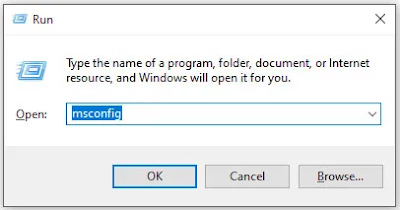
  1. Use the Win+R keyboard shortcut and type “msconfig“ without quotes, then hit “enter.”

Run Command

    2.    Tap the “Boot” tab in the upper section of the screen.

    3.Select “Safe Boot.”


    4.Choose “Minimal” from the list of boot options.


Step 2: Run Windows Memory Diagnostic

The Windows Memory Diagnostic tool will test your SDRAM and report any problems it finds—if any at all. This step should use Safe Mode to prevent the BSOD issues you experience. However, this requirement is after affirming that your PC worked correctly in Safe Mode using Step 1 above.

  1. Press the “Windows + R” keyboard combination and type “mdsched” without quotes, then press “Enter” or click “OK.”

     2.Select the option to restart and run a check for SDRAM problems.


Upon restart, you will receive a report letting you know if you’re having a memory issue.

As the name suggests, the memory management error relates to the computer’s memory, which can be a physical problem with the installed RAM. The Windows Memory Diagnostic Tool can help discover if this is the root of the problem.

When Windows restarts, it will tell you if there is something wrong with your memory. If there is, then you’ll have to either replace the RAM yourself or send back your computer if it’s under warranty.

Step 3: Run SFC Scanner
SFC Scanner is a Microsoft tool for detecting various problems with your system, and running it seems to have solved some people’s memory management woes. Once again, this step should also be performed in Safe Mode like Step 1 and Step 2 above.

  1. In the Cortana search bar, type “cmd” without quotes, then click on “Run as administrator” in the right panel for the Command Prompt. You can’t use the right-click Start Menu option anymore since Powershell replaced Command Prompt.

    2.Once the Command Prompt opens, type “sfc/scannow” without quotes and press “Enter.”

SFC Scanner will now run through your system, seeing if it finds any disk errors to fix. Even if it doesn’t find anything, some users have found that their computers play nicer after a full scan.

Note: It is best to perform two or three rounds of scanning since the process doesn’t always detect anything on the first attempt or fixes something else and needs to find more issues.

Step 4: Look for Software Problems
Software problems are a little more challenging to pin down. Still, if the memory management error is a relatively new phenomenon, you could try undoing some of your recent software installations to see if it fixes the problem.

Specific pieces of software often link to memory management errors. You can try disabling and re-enabling newer software to see if that fixes the BSOD, or you can reload Windows 10 entirely (although this is a nuclear option).

Isolating and correcting a software issue or even a corrupted file can take a while, but it’s certainly worth it if you’re not entirely sure you’re experiencing a hardware failure.

Step 5: Update Your Graphics Card Drivers
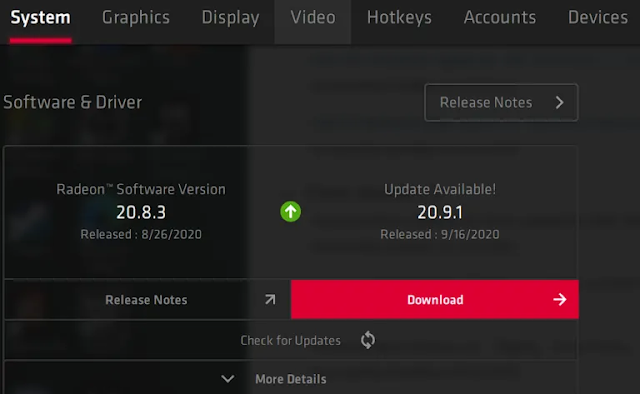
One of the most common causes of the memory management error in Windows 10 is outdated or broken graphics card drivers. This scenario makes sense, especially since the graphics card has memory too. If you’re not running the latest version, try installing the newest available.

If you already have the latest drivers, try the “uninstall/reinstall” method. Sometimes, a driver is broken or corrupt but goes undetected. The drivers you need will depend on your graphics card, of course. Windows 10 will be able to tell you what you have in your system, but it’s likely to be onboard Intel graphics or something from Nvidia or AMD. External video cards have more memory than onboard graphics, and they are more prone to overheating.
Graphic Information

Visit the website of the manufacturer and download any updates to get your system working correctly again.

Step 6: Upgrade Your PC’s Hardware
Depending on the results of your troubleshooting adventures, it may be time to upgrade some of your system’s hardware. As software and PC technology progress, so does hardware requirements.

Before rushing out to buy new hardware, check to ensure that everything in the case is seated correctly. Perhaps you recently moved your machine, and something came loose, or your hardware could use a thorough cleaning.

If it’s a machine that you’ve built or one that is out-of-warranty, it’s time to look for new components to get your computer up and running again. It may be an opportunity for a new graphics card, or you may need more RAM. Whatever the case, if you’ve tried everything above and the issue persists, it’s likely hardware-related.

Git vs. SVN: Which version control system is right for you?

 Version control systems are integral to building software. They combine your repository of project files with a history of all your code changes, making it easy to edit and understand your code over time.

The main benefit of using a version control system is that it keeps your team’s workflows organized as they work through various types of releases. With one in place, team members can easily research, track, and undo code. They can work on the same code simultaneously without code conflicts. Plus, the whole team can track who made what changes, when, and why.

But before you implement a version control system into your team’s workflow, you need to figure out which one is right for you. While most options out there have similar benefits, their differences are important.

Git vs. SVN version control systems

With all version control systems, project files sit on a server that you push your files to when you have completed your work on your local machine. However, deciding whether to use a centralized version control system (like SVN) or a distributed version control system (like Git) will affect how you commit changes.

Remember, not all version control systems fit all teams and all needs. A method that works perfectly for one company may be entirely wrong for your team. To determine which system to use, you need to look at how each system works.

What is SVN?

Apache Subversion, also known as Subversion, SVN represents the most popular centralized version control system on the market. With a centralized system, all files and historical data are stored on a central server. Developers can commit their changes directly to that central server repository.

Work is comprised of three parts:

  1. Trunk: The trunk is the hub of your current, stable code and product. It only includes tested, unbroken code. This acts as a base where all changes are made from.
  2. Branches: Here is where you house new code and features. Using a copy of the trunk code, team members conduct research and development in the branch. Doing so allows each team member to work on the enhanced features without disrupting each other’s progress.
  3. Tags: Consider tags a duplicate of a branch at a given point in time. Tags aren’t used during development, but rather during deployment after the branch’s code is finished. Marking your code with tags makes it easy to review and, if necessary, revert your code.

Here’s how this process looks: To create a new feature you first branch the code from the trunk, i.e. take an exact copy of the trunk and place it into a new folder within the branches area. Then you work on your feature. When you’re done, you merge your changes back into the trunk.

The benefit of branching is the ability to make commits into the branch without breaking the trunk. You only merge into the trunk when your code is error-free. This keeps your trunk stable. And users generally appreciate how easy it is to use and understand SVN.

However, working on one central server means there is a single point of failure. If there is an error, it can destroy all builds. Limited offline access is also a frequent point of complaint.

What is Git?

While centralized systems were the version control system of choice for nearly a decade, Git has surpassed them in recent years.

Unlike SVN, Git utilizes multiple repositories: a central repository and a series of local repositories. Local repositories are exact copies of the central repository complete with the entire history of changes.

The Git workflow is similar to SVN, but with an extra step: to create a new feature, you take an exact copy of the central repository to create your local repository on your local machine (you can think of this as your “local trunk”). Then you work on your local repository exactly as you would in SVN by creating new branches, tags, etc. When you’re done, you merge your branches into your local repository (i.e. local trunk). When you’re ready to merge into the central repository, you push your changes from your local repository to the central repository.

Many people prefer Git for version control for a few reasons:
  1. It’s faster to commit. Because you commit to the central repository more often in SVN, network traffic slows everyone down. Whereas with Git, you’re working mostly on your local repository and only committing to the central repository every so often.
  2. No more single point of failure. With SVN, if the central repository goes down or some code breaks the build, no other developers can commit their code until the repository is fixed. With Git, each developer has their own repository, so it doesn’t matter if the central repository is broken. Developers can continue to commit code locally until the central repository has been fixed, and then they can push their changes.
  3. It’s available offline. Unlike SVN, Git can work offline, allowing your team to continue working without losing features if they lose connection.

Teams also opt for Git because it’s open source and cross-platform. That means that support is available for all platforms, multiple sets of technologies, languages, and frameworks. And it’s supported by virtually all operating systems.

There is one con teams find frustrating: the ever-growing complexity of history logs. Because developers take extra steps when merging, history logs of each issue can become dense and difficult to decipher. This can potentially make analyzing your system harder.

Alternatives to Git

Git vs. GitHub

Although similar in name, Git and GitHub offer very different services. While Git allows users to make edits and make changes to and track their repository of code, GitHub is a cloud-based host that allows you to upload and manage Git repositories in an open-source format.

By managing a project in GitHub, all of your team can make edits simultaneously without affecting the trunk. Users can copy the code from GitHub to their local machines to test and make edits. In order to reintegrate a branch back into the trunk, the user must push or pull the changes from their local machine. And, if you’re working on an open-source project, anyone using GitHub, on your team or otherwise, can create branches to make edits on the Git uploaded to the hosting platform. In this way, the code is shareable to others who may be working on similar projects.

Git vs. Perforce

While Git and Perforce offer many of the same benefits, there are still a number of differences that make one better suited than the other depending on the team.

  1. Git is decentralized, or distributed. This means that to edit, developers download the source code onto their local machines to work and make edits, while Perforce is centralized, meaning all developers are making edits to one master branch kept on a server and accessible to all team members.
  2. Git is focused on code. While both store and track code in trunks and branches, Perforce also stores non-code assets. If developers are working with graphics, binaries, or other elements, Perforce can store these elements just like the code repositories.

So, the more non-code based assets developers are working on and the more geographically sprawled they are, Perforce becomes a better and better option. However, Perforce does not allow for multiple developers to work on the same code and conduct changes all at once.

Git vs. TFS

Like Perforce, TFS (also known as TFVC) is a centralized version control system (CVCS). So there is one version of code stored in a main server that all developers on a team can view and work on at a single point in time. Working on solely a centralized version of the build increases the chances of breaking the trunk with a small error since it can’t be committed and tested on a local machine before reintegrating. It also increases the chance of losing work along the way if your local machine or the central server goes down or has an issue.

Git vs. Mercurial

Git and Mercurial offer largely similar functionality, but with a few key differences. Both Git and Mercurial are decentralized version control systems (DVCS), so both allow multiple developers to be working on the same source code downloaded to their local machines at the same time and reintegrate commits as changes are made and tested.

Unlike Git, however, Mercurial permanently stores each branch into commits, making it impossible to remove or edit past work, making it more likely for the trunk to fail if bugs are pushed to production. For this reason and the enhanced number of options available in Git, more experienced, professional developers with choose Git over Mercurial every time.

In conclusion

Whether your team uses Git, SVN, or another alternative, you’ll benefit from being able to track and review your code for better releases. Just be sure to choose an issue tracking software that supports your choice, so you’re able to properly track that work over time.

7 Ways to Connect Android Phone to TV


Hey guys, Today in this post I’ll tell you, 7 Ways to Connect Android Phone to TV. Sometime this thought comes in your mind that if you can connect your android phone with your TV and can play music, songs, videos or games on it but many people are not knowing that it can be done so easily. Display of our android phone is much smaller. So that, we aren’t able to enjoy games and videos on it but if we can watch it on the screen of our TV then it will be much more enjoyable than that of watching it on mobile screen. If smart or non smart TV is there at your home then you can connect your android phone with your TV and watch your mobile screen on TV. Connecting android phone to TV is very simple only you should know how to connect it.  
Connect Android Phone To TV
Now the most important thing is that if you have TV in your house then what kind of is smart or non-smart? Because if you have smart TV then you can connect your android phone to TV with wifi without any wire. But if you have a non-smart TV then you have to use the wire to connect them. Means smart TV and non-smart TV have different ways of connecting with android phone. In today’s post, we are going to tell you about the two types of method, which can help you connect with your android phone to TV. After reading this post, you can connect any kind of TV to your android phone. There are many types of way to connecting them.

Facebook has started internal testing of its dating app


Two months after announcing the product at its F8 developer conference, Facebook is testing its dating product internally with employees. Independent app researcher Jane Manchun Wong, who regularly uncovers new Facebook features by scouring the source code, found evidence of the product Friday and posted it on Twitter. The company confirmed to The Verge that the product is in testing within the Facebook app but declined to comment further.

How to Recover Deleted WhatsApp Images/Pictures from Android and iOS Devices

Today i got a call from one of the important person of my life Preetveer Singh (a best friend cum brother) being facing a problem of whatsapp recovery as we all know WhatApp is an integral part of our everyday communication, and any lose of data is highly frustrating. Losing your WhatsApp images is like a nightmare. But surprisingly it happens more often than you know, and recovering these deleted WhatsApp photos is not easy unless you have a robust solution like a WhatsApp recovery software.
If you are struggling with data lost, then this article will definitely be a lifesaver. Go through this comprehensive guide to know how to recover deleted WhatsApp photos and other data for iOS and Android devices like a pro.
recover whatsapp images
I have came up with a few solutions for you-


Part 1: How to Recover Deleted WhatsApp images Selectively on iOS Devices
Part 2: How to Recover Deleted WhatsApp images Selectively on Android Devices
Part 3: How to Recover WhatsApp images from Auto-Backup

Agile software development methodologies and how to apply them

Introduction to Agile software development methodologies and how to apply them. It is about how to work together to achieve a common goal. This article focus on how technology team work together well to plan, build and deliver software.
Introduction
This article is a basic introduction to Agile software development methodologies and how to apply them. It is about how to work together to achieve a common goal.  This is not only suitable for software developers but also for Team Leaders, Project Managers, Product Managers, Development Managers, Testers, QA Managers, QA Engineers, Technical Writers, UX Designers, anyone involved in the delivering software.  This article focuses on how technology teams work together well to plan, build, and deliver software. It does not talk about code or specific technologies, or only about Microsoft tools. Hope this will improve your professional life and the effectiveness of your team. 

(Activate Now)How To Activate Jio Prime Membership

Jio Prime Activation: Hi There and Welcome to The Protech. Form today onwards subscription or activation for Jio Prime Membership has begin only till 31 March 17. So don't waste your time.
Follow these 3 methods listed below and activate your Jio Prime Membership.
 Prime Membership Plan Benefits

1. Daily 1GB 4G Data (Unlimited At 256 Kb).

2. Daily 1GB 4G Wifi Data At Rs 10.

3. Unlimited Voice Calls And Unlimited SMS (100 SMS) Daily.

4. Unlimited Usage Of Jio Videos,Movies,Apps Subscription worth Rs.10000.

Beware! Don't Fall For "Font Wasn't Found" Google Chrome Malware Scam


Next time when you accidentally or curiously land up on a website with jumbled content prompting you to download a missing font to read the blog by updating the Chrome font pack…
…Just Don't Download and Install It. It's a Trap!

Scammers and hackers are targeting Google Chrome users with this new hacking scam that's incredibly easy to fall for, prompting users to download a fake Google Chrome font pack update just to trick them into installing malware on their systems.

Must Read this before Buying Jio Prime Membership | Hidden Truth

Jio Prime T & C: Hi There and Welcome to The Protech today I'll be showing you some t& c of Jio Prime Membership which you all aren't aware of. We all doesn't waste our time to Read this but I have selected some main points which you need to know. 
Main Points of Jio Prime Membership which you need to know:
1. Post 31st March, 2017, if you have not recharged with any plan Minimum of Rs 149 Plan, your services will stop even if you are Jio Prime . You will be able to get incoming voice calls and SMS for certain period.

500 Internal Server Error

How to fix a 500 Internal Server Error
The 500 Internal Server Error is a very general HTTP status code that means something has gone wrong on the web site's server, but the server could not be more specific on what the exact problem is.

Are You the Webmaster? See Fixing 500 Internal Server Error Problems on Your Own Site towards the bottom of the page for some better advice if you're seeing the 500 Internal Server Error on one or more of your own pages.
The 500 Internal Server Error message might be seen in any number of ways because each website is allowed to customize the message.

Here are several common ways that you might see the HTTP 500 error:

Yahoo Disables Email Auto-Forwarding; Making It Harder for Users to Move On

Yahoo! has disabled automatic email forwarding -- a feature that lets its users forward a copy of incoming emails from one account to another.
The company has faced lots of bad news regarding its email service in past few weeks. Last month, the company admitted a massive 2014 data breach that exposed account details of over 500 Million Yahoo users.
If this wasn't enough for users to quit the service, another shocking revelation came last week that the company scanned the emails of hundreds of millions of its users at the request of a U.S. intelligence service last year.
That's enough for making a loyal Yahoo Mail user to switch for other rival alternatives, like Google Gmail, or Microsoft's Outlook.

10 Data Recovery Tools You Can Download For Free [Windows]

It happens to the best of us. We are working on that very important file when suddenly disaster strikes. It accidently gets deleted, corrupted, the computer died or a number of unfortunate things that prevent you from gaining access to the file. What’s worse, you don’t have a backup and are in desperate need of those important files urgently.

Well, don’t fret as it is possible to recover those deleted files. When you delete a file, you don’t actually ‘delete’ it. The system marks the area the file resides as reusable, removing the file from its index. This means that there is a period where it is possible to restore the file. To help you with your deleted data dilemma, we have for you 10 free data recovery tools for Windows, which will help from simple file recovery to a total partition rescue.
1. PhotoRec

PhotoRec is a powerful command line recovery tool that can recover your lost data by bypassing the file system, perfect for when your computer can see the drive but cannot access it or for use on a formatted drive. The app will work on different drive formats other than the ones used by Windows, including those used on OS X, and is also available on multiple platforms.
[Download here]

2. Recuva
Recuva provides a number of tools and features that makes recovering your data easier. The app will deep scan your drives and with it, you can recover deleted data on your drive or from drives that are damaged or formatted. It has the ability to recover data that was accidently deleted from certain apps such as your email program or the temp folder of Microsoft Word, useful when the power cuts off and you haven’t saved your progress. If the options seem too overwhelming, there is a wizard to guide you through the process.
[Download here]

10 Data Recovery Tools You Can Download For Free [Windows]

It happens to the best of us. We are working on that very important file when suddenly disaster strikes. It accidently gets deleted, corrupted, the computer died or a number of unfortunate things that prevent you from gaining access to the file. What’s worse, you don’t have a backup and are in desperate need of those important files urgently.

Well, don’t fret as it is possible to recover those deleted files. When you delete a file, you don’t actually ‘delete’ it. The system marks the area the file resides as reusable, removing the file from its index. This means that there is a period where it is possible to restore the file. To help you with your deleted data dilemma, we have for you 10 free data recovery tools for Windows, which will help from simple file recovery to a total partition rescue.
1. PhotoRec

PhotoRec is a powerful command line recovery tool that can recover your lost data by bypassing the file system, perfect for when your computer can see the drive but cannot access it or for use on a formatted drive. The app will work on different drive formats other than the ones used by Windows, including those used on OS X, and is also available on multiple platforms.
[Download here]

2. Recuva
Recuva provides a number of tools and features that makes recovering your data easier. The app will deep scan your drives and with it, you can recover deleted data on your drive or from drives that are damaged or formatted. It has the ability to recover data that was accidently deleted from certain apps such as your email program or the temp folder of Microsoft Word, useful when the power cuts off and you haven’t saved your progress. If the options seem too overwhelming, there is a wizard to guide you through the process.
[Download here]

Pics and chat data are hackable on apps like Tinder and Grindr

Dating is all about exchanging information to find a match. But if you've ever used Tinder, Grindr or any popular dating app, your personal information may have gone further than you'd like.

A new study shows that it is easy to hack into popular dating apps like Tinder and Grindr to reveal email addresses, profile pictures and private messages.

Raymond Choo, an information security expert at the University of South Australia in Adelaide, and his colleagues created fake profiles on eight of the most popular dating apps in the Google Play store. They then tried to get the data, now supposedly private, back out of a Samsung Galaxy S3 phone by capturing network traffic and trawling the app's private directory.

Disabling 'Find My iPhone' on iOS 7 without any Password


iOS devices have a feature called 'Find My iPhone', allows device owner to locate their stolen devices using linked Apple ID with iCloud Account.
Unfortunately, a security flaw in iOS make it possible to turn off Find My iPhone without a password and enabled thieves to bypass the protection which makes the iPhone untraceable if lost or stolen.
To Set-Up 'Find My iPhone' feature, users need to link their Apple ID with it and this will not only helps in locating the device but also gives permission to its user to remove all the data, drive direction to the lost device, lock the device by a passcode and displays a custom message on the locked screen.
KILL 'Find My iPhone' WITHOUT APPLE PASSWORD
Normally, disabling Find My iPhone requires Apple ID password, but according to the vulnerability reported by Miguel Alvarado, a thief can bypass all of this security feature without knowing your Apple account's password.
In a video demonstration on iOS 7, he explained that just by tapping the “Delete Account” in the iCloud settings panel and switch the “Find My iPhone” to off mode simultaneously, one can easily remove the iCloud account without any password authentication.


But doing so is not that much easy as it actually looks, a novice has to perform this a number of times to get this done.
After Doing so, just connect the hacked iPhone with your computer and use iTunes software to restore the smartphone's Data.
Similar flaw was disclosed in February this year allows anyone to disable 'Find My iPhone' on iOS 7.0.4 devices.
HOW TO PROTECT YOUR iPHONE
The the vulnerability is totally irrelevant if you have a passcode on your iPhone. Apple will release a fix as soon as possible, until then users are advised to keep a secure passcode with a very short timer, that prevents anyone from getting into the iCloud settings at all.

Free Microsoft Windows for the Internet of Things and Mobile Devices


Today, 8th April could be a sad day for all those who are still using Windows XP, as it is an official assassination day of it, but there is also a good news that Microsoft is going to stop charging for its Windows Operating System on on the devices with screens smaller than nine inches.
Yes, Free a Windows OS for the Internet of Things (IoTs), such as Mobile Devices, Smart thermostats, Smart TVs, wearable devices etc., that was announced by Microsoft at Build 2014 conference on Wednesday.
“To accelerate the creation of great mobile devices running Windows and grow our number of users, we announced today that Windows will be available for $0 to hardware partners for Windows Phones and tablets smaller than 9” in size,” said Terry Myerson, executive vice president, OS Group at Microsoft and he also added that it will include a one-year subscription to Office 365.
FREE, BUT NOT OPEN SOURCE
Free Windows, means the manufacturers of small tablets, phones and any other small devices won't have to buy a license from Microsoft.
According to Microsoft, Windows for Internet of Things will use the same code base as Windows Phone 8, which will run only the mobile apps, not any desktop software, and also they didn't mention about open sourcing the code base of Windows for IoTs, as Google’s Android.
The reason behind it may be in an effort to make it tough for hackers to exploit the operating system and to ensure the code is sound and secure.
Distributing free Windows could be a prominent step, but it’s one that Microsoft needed to take earlier, because Google’s free mobile operating system - Android is used widespread among the consumer electronics devices. The reason Microsoft required to move on to some strategic approach is to catch up with Google's Android and Apple's iOS operating systems.
Since, Google’s android is an open source, which is freely available to everyone, so anyone can use it without paying a single penny and even Apple is also pushing itself hard to bring its operating system prices towards zero.
But, on the other hand, Microsoft is charging $10 for its Windows Phone operating system on each Smartphone and tablet, which made existence toilful for Microsoft in recent years. So, to boost its monopoly in the world of smart devices, Microsoft took a tremendous move in a right direction.
The new update will definitely help Microsoft to beef up its app marketplace, as it allows developers to build apps for Windows 8.1 tablets, as well as for Windows Phone 8.1 Devices.
WINDOWS PHONE 8.1
In addition, Microsoft has also announced the next version of the Windows Phone operating system, Windows Phone 8.1, which comes with several new features, including the voice controlled Cortana digital assistant.
Cortana is named after a female character in Microsoft's Halo video game, and is aimed as a competitor to Apple's Siri for iOS. Microsoft said Cortana can interact with third-party Windows Phone apps such Skype, Hulu Plus, Facebook and Twitter, all of which can be controlled via voice commands.

Download WhatsApp for PC [Guide to use WhatsApp on Computer - 7/8/Vista/XP]

WhatsApp for PC! Many of you might be wondering but now you can actually make use of WhatsApp on Windows platforms and in the due course of this article, we would be providing a complete Guide to use WhatsApp on PC.

You are interested in this title pretty much implies that you are addicted to or are keen to use WhatsApp for PC  since you are probably not comfortable using WhatsApp in your 4 or 5 inch touch screen smartphone. Well, if that is the case, join the club. I too find it so pestering to get my fingers around those little buttons. Darn it!

Good for people like us; we’ve got an alternative to using WhatsApp on PC other than on an Android, Symbain, Blackberry or on an iOS. One can effectively use WhatsApp on PC, just like on any one of the above mentioned handheld devices. Indeed, with much more comfort! Technology has an answer for every problem. Just that, tech offers two answers for this one.
Fine; I’ll not keep you waiting anymore. Let’s jump right into the business of how to download WhatsApp for PC and use it that way. Make sure you follow the instructions carefully for downloading WhatsApp for PC.

Guide to use WhatsApp on PC:

In this how to use WhatsApp for PC tutorial, I’d be helping you download WhatsApp for PC in two distinct methods with screenshots. Both the methods help to install WhatsApp on PC with equal ease. So you can go for either. Both work well in my case.
  1. Download and Install WhatsApp for PC using BlueStacks.
  2. Download and Install WhatsApp for PC using Wassapp.

Method 1:Download WhatsApp for PC Using Bluestacks

BlueStack is an Android emulator that lets us install and use almost all Android apps and games on a PC.  This is how we’ll avail WhatsApp for PC using this android emulator. It is not just on PC that you can take advantage of BlueStack, but also on a MAC. When it comes to PC, BlueStack works on all widely deployed operating systems i.e., Windows XP, Windows Vista,Windows 7, and Windows 8.
Step 1: Get BlueStack from here and install it on your PC.

Step 2: Upon installation, open BlueStack. You’d find a welcome screen showing the top 25 Apps.
Step 3: Navigate to the My Apps tab next to top 25 Apps. You will find the apps that are downloaded by default here.
Step 4: In the same screen select App Search, wherein you’d be searching for the WhatsApp app.
Step 5: In the search bar that appears, type WhatsApp or WhatsApp for PC. The search engine searches for the keyword in Google Play, one mobile and the Amazon App Store, and shows a search result from all three stores.
Step 6: Select WhatsApp Messenger from the 1 mobile store. You then need to click install button against WhatsApp Messenger in the screen that follows.


Once done, BlueStack downloads WhatsApp for you. It takes about 2 minutes for this to happen.
Step 7: You will now find WhatsApp installed in you ‘My Apps’ tab. You are just one step behind; i.e., configuring your WhatsApp account.
Step 8: Open WhatsApp and click I agree with terms button.
Step 9: You then have to select your nation and put in your mobile number and say Ok.
Step 10: WhatsApp will now send you a SMS or Voice verification. You just got to enter the code you get via the SMS of voice call from WhatsApp.

Voila! You are now done with a fresh WhatsApp installation on your PC.  You’ve learnt to use WhatsApp for PC using Bluestacks App Player.

Hack Windows using winAUTOPWN 3.4 –Completing 4 years of windows hacking

winAUTOPWN has been an old favourite to automate windows hacking and vulnerability testing.  The project is the brainchild of Azim Poonawala of [C4]Closed Circuit Corporate Clandestine and saw its first release in 2009. Fast forward to 4 years; it has matured into a good exploitation framework with a plethora of options. As the Author states about it  -

Autohack your targets - even if you have consumed and holding a bottle of 'ABSOLUT' in one hand and absolute ease (winAUTOPWN) in the other.

In layman terms, winAUTOPWN is a unique exploit framework which helps in gaining shell access and pwning (aka exploiting vulnerabilities) to conduct Remote Command Execution, Remote File/Shell Upload, Remote File Inclusion and other Web-Application attacks. To add cherry on the top, it can also help in conducting multiple types of Denial of Service attacks on targets, furthermore, It can also be used to test effectiveness of IDS/IPS 

Windows XP Hangs At Shutdown Screen


Note: Before perform following steps you need to take backup 
start > run > type regedit > press enter > go to file menu > click on export> save in any place as you want like desktop or c:/

Step1: Open REGEDIT and navigate to ‘HKEY_CURRENT_USER\Control Panel\Desktop\’
Highlight the ‘WaitToKillAppTimeout’ value.
Set it to ‘1000′.
Now highlight the ‘HungAppTimeout’ value
Set it to ‘1000′ also.
The second part of this tip changes the same settings, this time for all users on the system.
Step2: Open REGEDIT and navigate to ‘HKEY_USERS\.DEFAULT\Control
Panel\Desktop’
Highlight the ‘WaitToKillAppTimeout’ value.
Set it to ‘1000′.
Now highlight the ‘HungAppTimeout’ value.
Set it to ‘1000′ also.

How To Design A Logo : The Ultimate guide


What is a Logo?A logo is a graphic mark or graphic representation or symbol, icon of the name of the organization . A logo designing is very important and one of the difficult part of the graphic designing in meaning of creating a unique and original designing. A professional logo can be design to enhance the meaning of a company, an organization, or a product There are several type of inventions and techniques have contributed in logo designing. A logo is important part of business of any single owner or company. It’s identify your business and products from other similar businesses and help the customers to reach the exact place where they want to go.
How To design a Logo?
Every designer have their own techniques and method to design a logo but some steps which every designer follow are mention here. Designing a good logo is not a simple task and requires a lot of involvement from the marketing team and the design agency. If you re designing a logo for your client then first of all you need to discuss with your client about the logo type and briefly discuss about the business and their products. If you can search in detail about the company and logo then its easy for you to design a logo. You can also search about the market trends and check the logos of other similar companies. A complete detail about the logo is is helpful create a unique and perfect design. You should also try and incorporate your business name, message or sell line. 

 
Design by gitstein | Bloggerized by Kuldeep